Summary of the steps
The process is as follows
- Publish entity in D365
- Add these tables to ADW_entity_staging job
- Confirm it exists in the source database
- Add the new line of code in 0050 SP
- Either let the refresh pick up the new table or run 0050 + 0100 SP.
1. Go to Data Management in D365 -> click on Data entities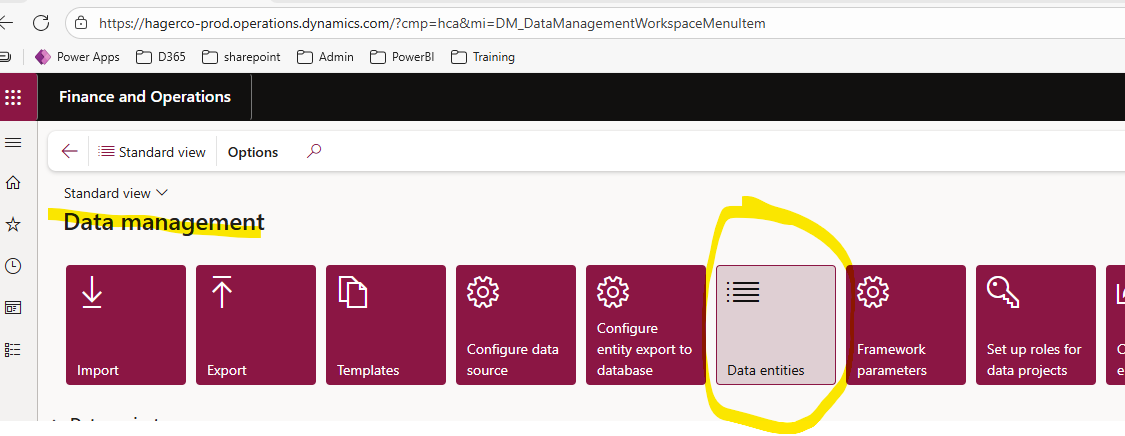
2. Select each table and click on Publish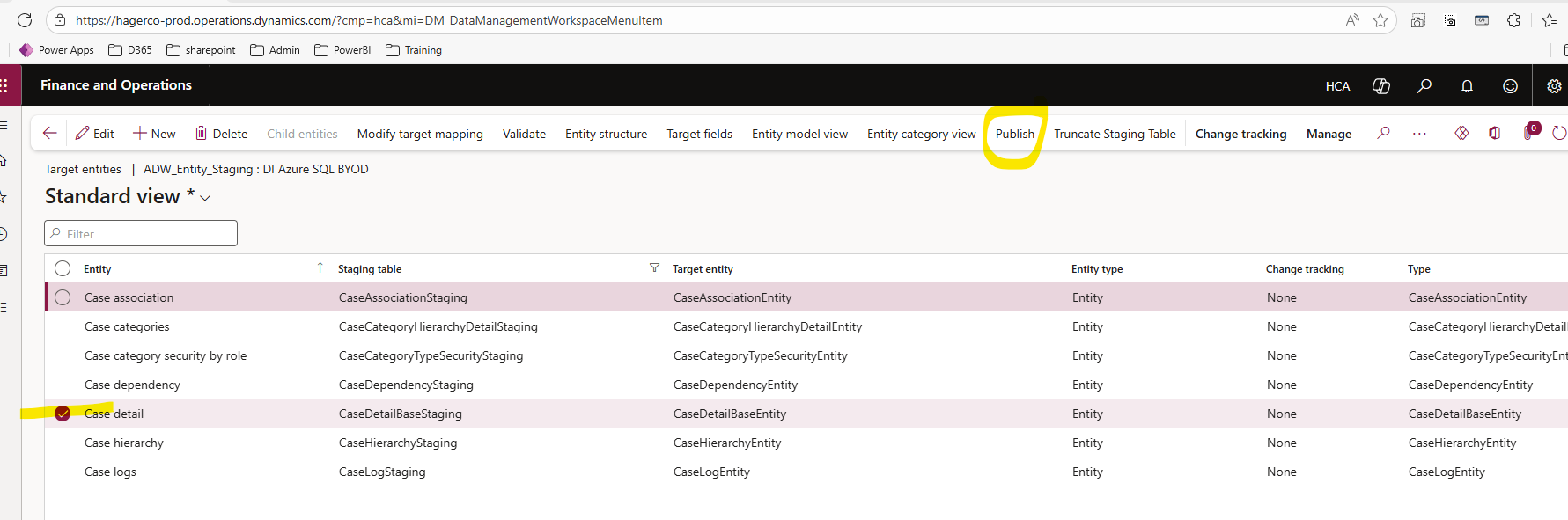
3. select the source name and select publish.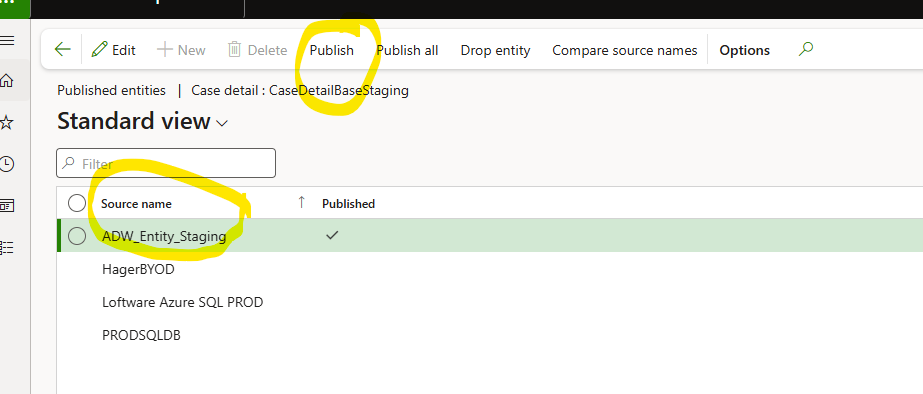
4. Add these tables to ADW_Entity_Staging job in Data Management and select the Source Data as "ADW_Entity_Staging ".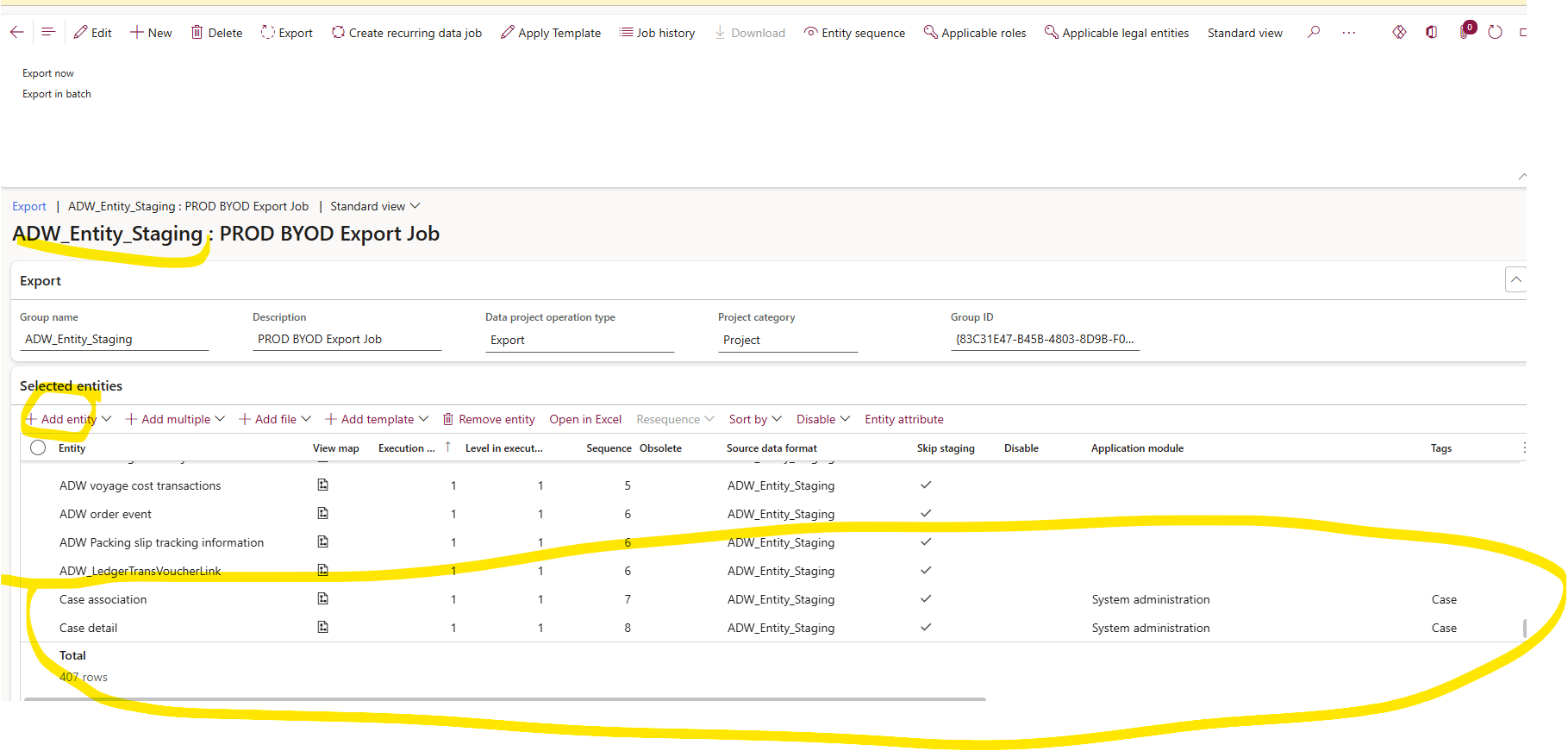
5.Check if you were able to see these tables in this server hagerco-adw.database.windows.net and in one of the databases depending on where you have published in UT or Prod.
you will find the username/password at this location by clicking on the source name and show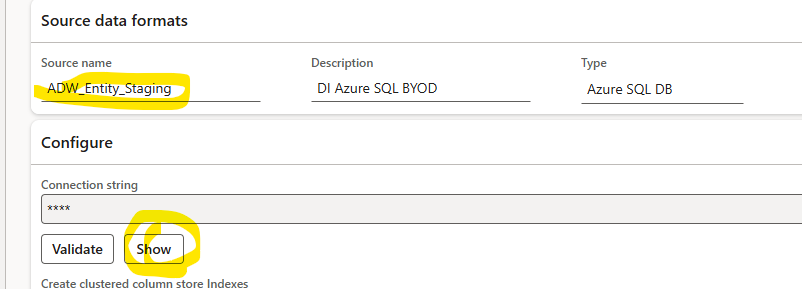
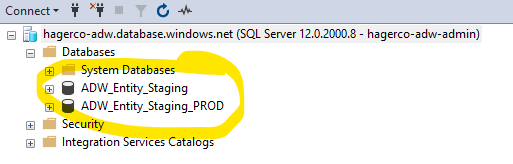
Tables: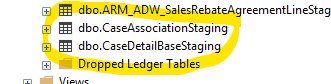
6. As part of the data warehouse, we have a custom SP which runs called “[Custom]. [A_sp0050_ListCustomTable]”
The store procedure script is in: C:\PrecisionPoint\Custom Scripts\UAT\20251107
Example: casedetail and caseassociation tables are here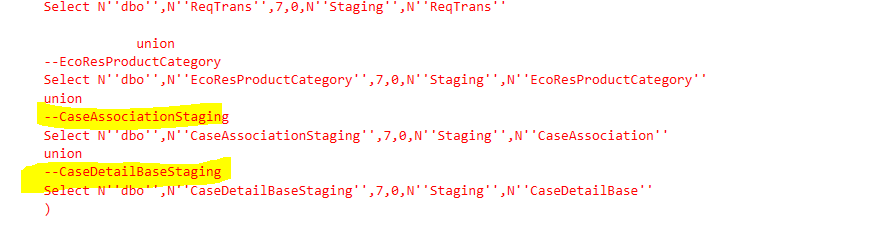
7. Once the Daily Refresh job runs - you can see these tables in the Data warehouse server "Hagerco-D365-DW" and database "ArmaninoDW_PROD"
Was this article helpful?
That’s Great!
Thank you for your feedback
Sorry! We couldn't be helpful
Thank you for your feedback
Feedback sent
We appreciate your effort and will try to fix the article